Use a voice changer for Discord with confidence

A voice changer for Discord can add character to calls, streams, roleplay, and community events without making your setup harder to manage. Start with a focused voice prompt, then hand it off for the next step.

Review output before sharing

The Discord voice problem

Discord conversations move quickly, so an effect that sounds impressive in isolation can become tiring, muddy, or distracting in a live channel. The best setup starts with the scenario, keeps speech understandable, and gives everyone a clear way to opt out.

Three concrete workflows for Discord

Choose the workflow that matches your channel instead of applying the same effect everywhere. Each path keeps the voice choice, audience, and review step visible.

  1. 1

    Prepare a character voice

    Describe the role, mood, pitch direction, and clarity you need. Create a short sample before using it in a live Discord call, so you can catch harsh effects or unintelligible words early.

  2. 2

    Test it in a private channel

    Share the sample with a trusted moderator or friend and check volume, intelligibility, and timing. A private test separates creative experimentation from an audience that did not ask for an effect.

  3. 3

    Use it with a clear signal

    Introduce the voice as part of the session, keep a natural voice available, and stop when someone asks. For streams or events, record a short reference clip so the intended result is consistent.

Example output

The difference should be noticeable without burying the words. This example frames the change as a character effect rather than a reason to mislead other people in a live channel.

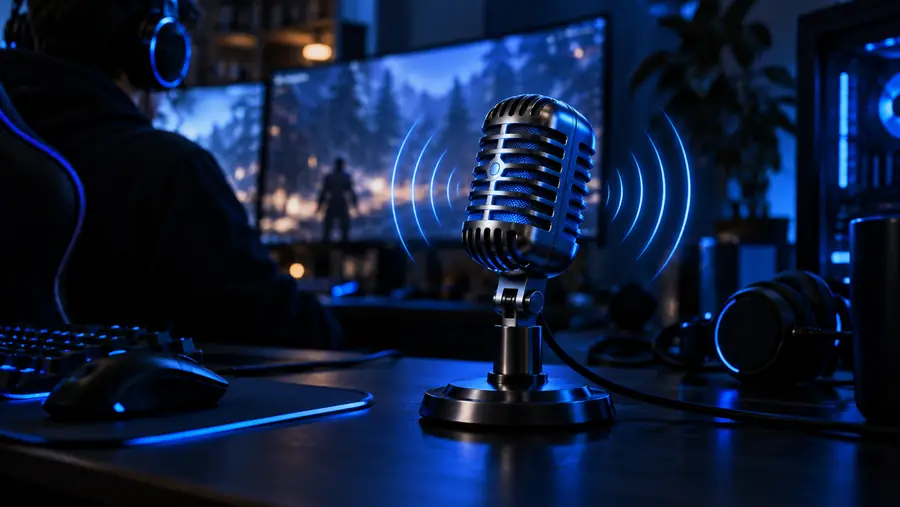
Plain spoken voice represented by a radio microphone Natural reference
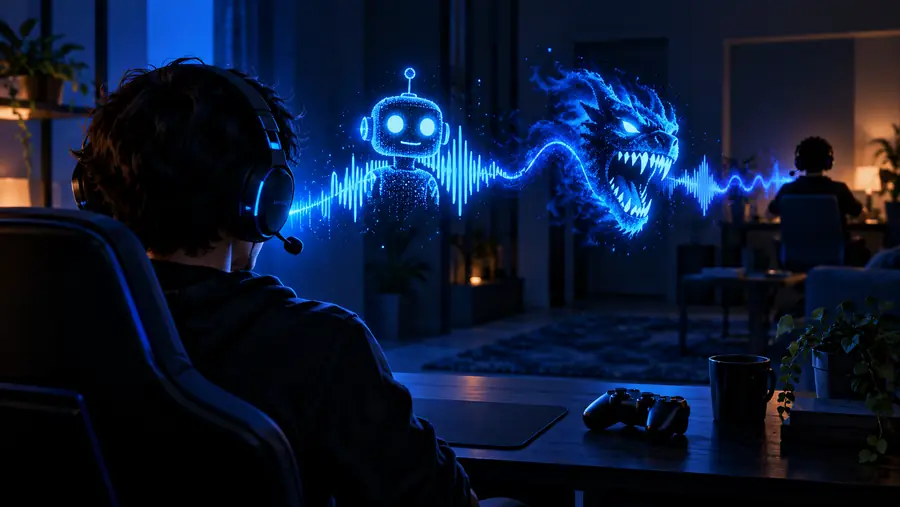
Character voice represented by a monster microphone Character treatment
Keep the words clear enough for conversation.

Compliance notes

A responsible Discord setup is measured by control, clarity, and consent rather than by how extreme the effect sounds. Use these checkpoints before a public call or event.

Tell participants when an effect is active
01 check
Keep a natural voice and an altered voice available
02 paths
Follow the server policy and the event host’s instructions
03 rules
Review a sample before sending it to a live channel
04 steps

Discord scenarios that fit the workflow

Different audiences need different levels of transformation. Pick the smallest effect that supports the moment and keeps communication usable.

Roleplay host

You need a distinct character voice for a tabletop session without losing dialogue clarity.

A reviewed character sample gives the group a recognizable performance cue while preserving ordinary conversation when needed.

deep voice changer online

Community moderator

You are testing a voice effect for an event where participants may not expect altered audio.

A private test and an explicit announcement reduce surprise and make it easier to stop the effect if the channel prefers natural speech.

what is voice changer app

Streamer

You want a short recurring character segment without making the entire broadcast difficult to follow.

A prepared reference clip and a consistent cue help viewers understand when the segment begins and ends.

voice changer online

Gaming group

Friends want a playful effect during a cooperative session but still need fast callouts and directions.

A lighter treatment keeps the joke audible and leaves a natural voice available for urgent communication.

how to use voice changer on iPhone

Prepare a Discord-ready voice

Describe the character, mood, and setting you have in mind, then review the result before bringing it into a live channel. A careful test makes creative effects easier for everyone to enjoy.

Create a Discord voice
  • Start with a specific scenario
  • Test before a public call
  • Keep communication understandable

Scenario FAQ

It can add a character or sound effect to calls, roleplay sessions, streams, and community events. The most useful setups keep the effect understandable and let participants know when altered audio is being used.

The phrase free voice changer for Discord describes tools or plans that may be available without an upfront charge, but features and terms vary by product. Check the exact tool’s current conditions before relying on it for a live session.

An online voice tool can help you prepare or test an altered voice, but the way it connects to a Discord call depends on the product and your audio setup. Test privately first to confirm that the intended input and output are reaching the right channel.

Start with a private sample, tell the relevant participants that an effect is active, and follow the server’s rules. Keep a natural voice available and stop using the effect if it interferes with communication or makes someone uncomfortable.

Start creating
Start creating